Grafana
Grafana 是一款流行的可视化监控平台, 支持通过 iframe 的方式将仪表盘嵌入到网页中, 常用于监控数据的展示与分析。
安装 Grafana
官方为 RHEL / Rocky 系列提供了 RPM 仓库, 通过仓库方式安装不仅流程简单, 也便于后续的版本升级和维护。完整说明可参考官方文档
首先, 需要在系统中添加 Grafana 的 yum 仓库配置。创建仓库文件
vim /etc/yum.repos.d/grafana.repo
填入以下内容
[grafana]
name=grafana
baseurl=https://rpm.grafana.com
repo_gpgcheck=1
enabled=1
gpgcheck=1
gpgkey=https://rpm.grafana.com/gpg.key
sslverify=1
sslcacert=/etc/pki/tls/certs/ca-bundle.crt
使用 yum 安装 Grafana
yum install grafana
配置 Grafana
在正式对外提供访问之前, 需要对 Grafana 做一些基础配置, 并不直接暴露到公网, 而是通过 Nginx 转发请求, 因此这里主要需要调整监听地址、对外访问的域名以及子路径配置, 同时启用匿名用户访问权限。
编辑 Grafana 配置文件
vim /etc/grafana/grafana.ini
Server 配置
#################################### Server ####################################
[server]
# Protocol (http, https, h2, socket)
protocol = http

# The ip address to bind to, empty will bind to all interfaces
http_addr = 127.0.0.1

# The http port to use
http_port = 53000

# The public facing domain name used to access grafana from a browser
domain = status.acesheep.com

# The full public facing url you use in browser, used for redirects and emails
# If you use reverse proxy and sub path specify full url (with sub path)
root_url = https://%(domain)s/grafana/

# Serve Grafana from subpath specified in `root_url` setting. By default it is set to `false` for compatibility reasons.
serve_from_sub_path = true
匿名访问配置
#################################### Anonymous Auth ######################
[auth.anonymous]
# enable anonymous access
enabled = true

# specify organization name that should be used for unauthenticated users
org_name = Main Org.

# specify role for unauthenticated users
org_role = Viewer

# mask the Grafana version number for unauthenticated users
hide_version = true

# number of devices in total
device_limit = 10
启动 Grafana
安装完成好之后, 可以通过 systemd 启动服务, 确保服务器重启后 Grafana 能够自动恢复运行。
systemctl start grafana-server
systemctl enable grafana-server
systemctl status grafana-server
验证 Grafana 是否正常运行
在配置反向代理之前, 可以先通过直接访问 Grafana 端口的方式, 确认是否已经正常运行。这里仅作为临时验证使用, 生产环境中不建议暴露该端口。
临时放行 Grafana 的默认端口
firewall-cmd --add-port=3000/tcp
在浏览器输入
http://你的服务器IP:3000
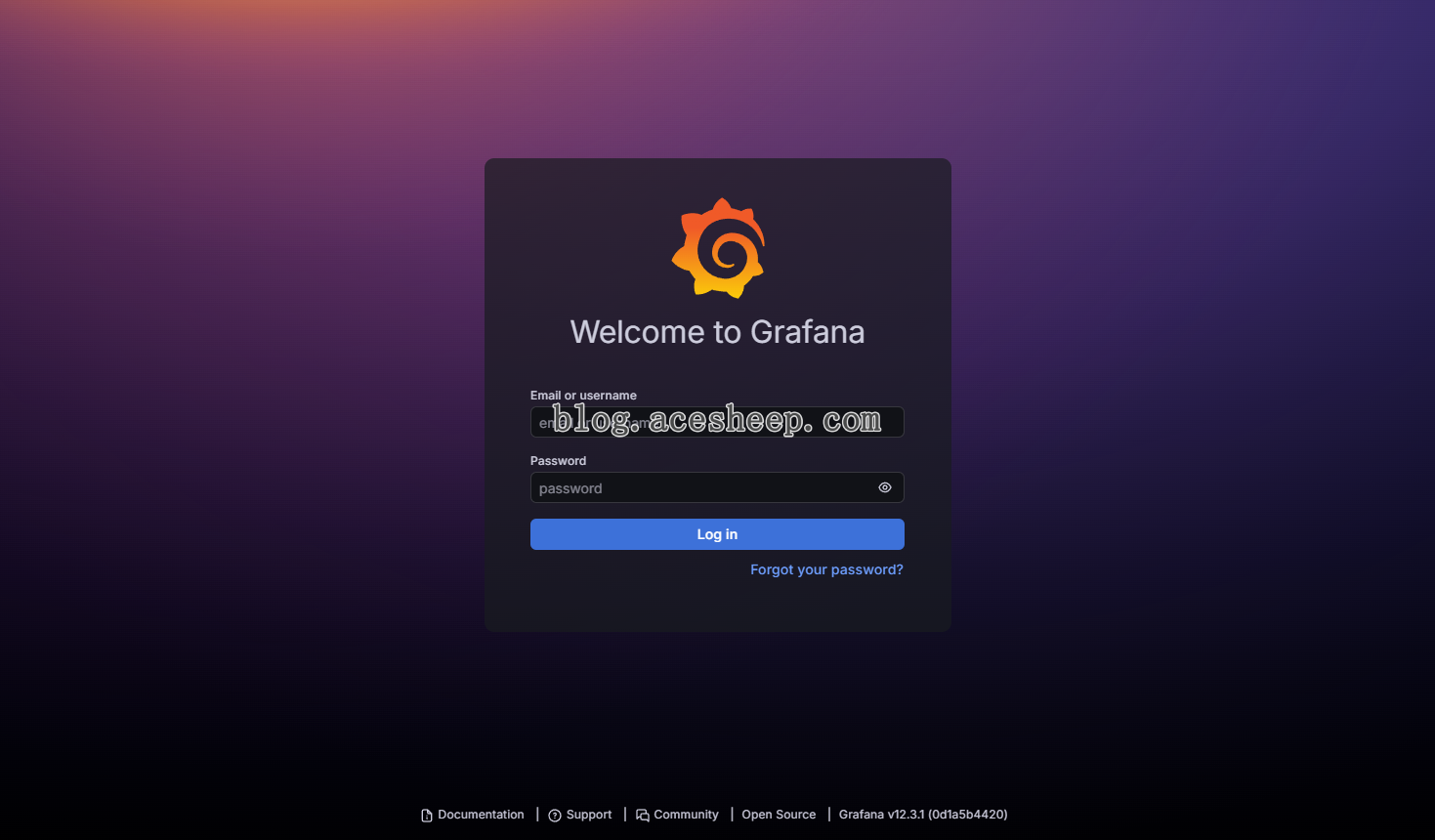
如果能够看到 Grafana 的 Web 界面, 说明服务运行正常。
Grafana 默认的登录用户名和密码为 admin, 首次登录后系统会提示修改初始密码。完成验证后, 即可关闭该端口, 并通过 Nginx 反向代理对外提供访问。
Prometheus
Prometheus 是一款时序数据库与监控系统, 主要负责采集、存储和查询各类运行指标, 通常与 Grafana 搭配使用。
下载 Prometheus
从 Prometheus 官网获取最新版本的链接
wget https://github.com/prometheus/prometheus/releases/download/v3.8.1/prometheus-3.8.1.linux-amd64.tar.gz
创建系统运行用户
不建议使用 root 用户运行 Prometheus, 创建一个专用的普通用户
useradd -M -s /sbin/nologin prometheus
建立专属文件夹
建立独立的目录, 并完成解压与权限设置
# 创建目录
mkdir -p /opt/prometheus
mkdir -p /opt/prometheus/data

# 解压程序文件
tar -xvf prometheus-3.8.1.linux-amd64.tar.gz -C /opt/prometheus --strip-components=1

# 设置权限: prometheus 用户需要读写权限
chown -R prometheus:prometheus /opt/prometheus

# 移除 other 用户的权限
find /opt/prometheus -type f -exec chmod o-rx {} +
配置 Prometheus
Prometheus 通过配置文件来定义指标的抓取规则。本例主要用于采集 Chihaya Tracker 对外暴露的监控指标, 其他配置项可参考官方文档
如果仅用于验证 Prometheus 是否能够正常启动, 也可以先创建一个空的配置文件
touch /opt/prometheus/prometheus.yml
在需要采集 Chihaya 的运行指标时, 可以在配置文件中加入以下抓取规则配置
scrape_configs:
  - job_name: chihaya_tracker
    scrape_interval: 5s
    scrape_timeout: 5s
    metrics_path: /metrics
    scheme: https
    basic_auth:
      username: tracker.acesheep.com
      password: blog.acesheep.com
    static_configs:
      - targets: ["tracker.acesheep.com"]
        labels:
          app: chihaya
上述配置通过 basic_auth 进行访问认证, 并明确了抓取路径、协议和目标地址。可根据实际部署环境, 对抓取频率和目标列表进行相应调整。
创建 systemd 服务
创建服务文件, 用于管理进程并配置运行参数与安全限制。
vim /etc/systemd/system/prometheus.service
内容如下
[Unit]
Description=Prometheus
Wants=network-online.target
After=network-online.target

[Service]
User=prometheus
Group=prometheus
Type=simple
WorkingDirectory=/opt/prometheus
ExecStart=/opt/prometheus/prometheus \
    --config.file=prometheus.yml \
    --web.listen-address=127.0.0.1:59090 \
    --web.enable-remote-write-receiver \
    --web.enable-lifecycle \
    --web.enable-admin-api

Restart=always
RestartSec=5

# Privileges
NoNewPrivileges=true

# Filesystem
ProtectSystem=strict
ProtectHome=true
ReadWritePaths=/opt/prometheus/data

# Kernel & devices
ProtectKernelTunables=true
ProtectKernelModules=true
ProtectControlGroups=true
PrivateTmp=true

# Memory & process hardening
RestrictAddressFamilies=AF_INET AF_INET6
SystemCallArchitectures=native
SystemCallFilter=@system-service

[Install]
WantedBy=multi-user.target
加载并启动服务
systemctl daemon-reload

systemctl enable --now prometheus
systemctl status prometheus

# 重启与日志查看
systemctl restart prometheus
journalctl -f --output cat -u prometheus
验证 Prometheus 是否正常运行
Prometheus 监听在本地地址 127.0.0.1:59090, 不直接对外提供访问, 因此可以通过检查端口监听状态来验证服务是否正常运行。
使用以下命令查看 Prometheus 是否已成功监听对应端口
netstat -nlptu | grep 59090
如果输出中可以看到 Prometheus 进程正在监听 127.0.0.1:59090, 说明服务已正常启动, 配置也已生效。
在需要通过浏览器访问 Prometheus Web UI 时, 可通过 Nginx 或 SSH 端口转发进行访问, 生产环境中不建议直接暴露该端口。

Prometheus 维护命令
在日常运维过程中常用的查询、配置热加载以及数据清理相关操作, 便于排查问题和维护存储空间。
查询当前已收集的指标
用于查看 Prometheus 中所有已存在的时间序列指标名称
{__name__!=""}
重载 Prometheus 配置文件
在不重启 Prometheus 进程的情况下, 重新加载 prometheus.yml 配置文件。Prometheus 启动时需开启 --web.enable-lifecycle 参数
curl -X POST http://127.0.0.1:59090/-/reload
删除匹配的指标
删除指定匹配条件下的所有时间序列数据。Prometheus 启动时需开启 --web.enable-admin-api 参数
# 该操作只会标记数据为 "已删除" (生成 tombstones), 并不会立即释放磁盘空间
curl -X POST -g 'http://127.0.0.1:59090/api/v1/admin/tsdb/delete_series?match[]={app="chihaya"}'

# 清理磁盘上的旧数据 (墓碑清理)
# 在执行 delete_series 后, 手动清理 tombstones, 真正释放磁盘空间
curl -X POST http://127.0.0.1:59090/api/v1/admin/tsdb/clean_tombstones
nginx 反向代理
通过 Nginx 将 Grafana 与 Prometheus 的接口安全地暴露到公网, 并提供 HTTPS 与路径隔离。
配置说明
- 提供 TLS (HTTPS) 支持, 并启用 HTTP/2
- Grafana 反向代理
- Prometheus Remote Write 接口
- 为 Grafana 和 Prometheus 分别配置独立日志, 便于排错与审计
server {
    listen 443 ssl;
    listen [::]:443 ssl;
    http2 on;
    server_name status.acesheep.com;

    # SSL 相关配置 (已省略)
    # 日志相关配置 (已省略)

    location / {
        try_files $uri /index.html;
    }

    location /grafana/ {
        access_log /var/log/nginx/grafana.log main;
        error_log /var/log/nginx/grafana.error;

        proxy_pass http://127.0.0.1:53000/grafana/;

        # 标准 Header 传递
        proxy_set_header Host $http_host;
        proxy_set_header X-Real-IP $remote_addr;
        proxy_set_header X-Forwarded-For $proxy_add_x_forwarded_for;
        proxy_set_header X-Forwarded-Proto $scheme;

        # 支持 WebSocket (Grafana Live 功能需要)
        proxy_http_version 1.1;
        proxy_set_header Upgrade $http_upgrade;
        proxy_set_header Connection "upgrade";

        # 避免文件上传或大数据量请求被 Nginx 拦截
        client_max_body_size 10m;
    }

    location = /collect/target {
        access_log /var/log/nginx/prometheus_remote_write.log main;
        error_log /var/log/nginx/prometheus_remote_write.error;

        limit_except POST {
            deny all;
        }

        proxy_pass http://127.0.0.1:59090/api/v1/write;
        proxy_http_version 1.1;

        proxy_set_header Host $host;
        proxy_set_header X-Real-IP $remote_addr;
        proxy_set_header X-Forwarded-For $proxy_add_x_forwarded_for;

        # 禁止缓存
        proxy_buffering off;
        proxy_request_buffering off;
        proxy_cache off;

        add_header Cache-Control "no-store, no-cache, must-revalidate, proxy-revalidate";
        add_header Pragma "no-cache";
        add_header Expires "0";
    }
}
至此, Grafana、Prometheus 及 Nginx 反向代理已完成部署。后续只需根据实际需求完善监控数据采集以及仪表盘配置即可。